Tinkercad Tutorial
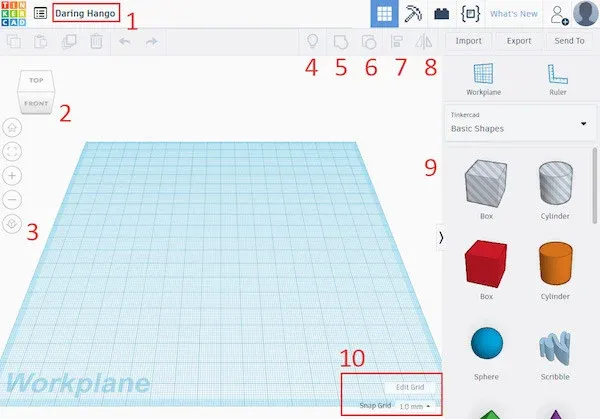
Excellent intro for absolute beginners
Section titled “Excellent intro for absolute beginners”🧱 Basic Shapes
Section titled “🧱 Basic Shapes”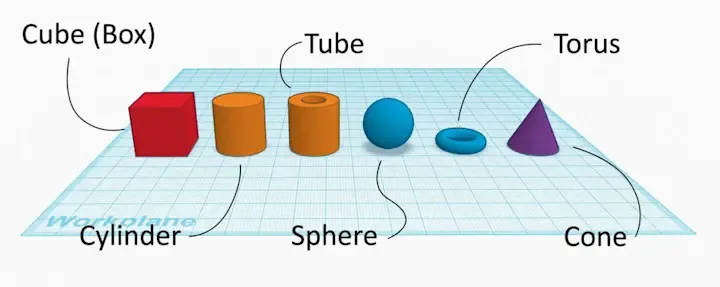
Complex shapes (3d objects) are made of basic shapes. Knowledge of basic shapes and when to use them is a critical skill to learn in Tinkercad.
Essential
| Icon | Shape |
|---|---|
 | Box |
 | Cylinder |
 | Sphere |
 | Text |
good to know it exists
| Icon | Shape |
|---|---|
 | Cone |
 | Roof |
 | Rounded Roof |
 | Half Sphere |
 | Paraboloid |
 | Star |
 | Heart |
 | Wedge |
See here for a intro from Tinkercad blog
🧭 Navigate the Workplane
Section titled “🧭 Navigate the Workplane”| Image | Tool | Actions | How to Use |
|---|---|---|---|
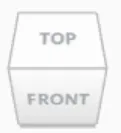 | View Cube | 1. Rotate workplane 2. Rotate to preset Views | 1. Drag cube to rotate workplane 2. Click faces for Top, Front, or Side views. |
 | Home | Reset View | Returns to default front-facing perspective. |
 | Zoom fit all | Zoom fit selected | Fits screen (nothing selected) or centers on selected objects. |
 | Perspective/Flat | Toggle View | Switches between 3D Perspective view and flat Orthogonal view. |
| Pan View | Move workplane horizontally or vertically | Hold Ctrl + Right Click + move touchpad |
✏️ Transform
Section titled “✏️ Transform”Move
move object by first making sure nothing is selected(click off or click blank space), then simply click and drag in one motion.
| Action | Shortcut | Result |
|---|---|---|
| Horizontal | Arrow Keys | Move 1 grid unit. |
| Horizontal (Large) | Shift + Arrows | Move 10 grid units. |
| Vertical off workplane | Drag Up Arrow Cone or press Ctrl+Arrow Keys | Raise or lower object. |
Rotate
| Action | Shortcut | Result |
|---|---|---|
| Set Angle | Select Handle → Tab → Type # | Rotate to exact degree. |
Resize
Excellent youtube video about scaling objects
| Action | Shortcut | Result |
|---|---|---|
| Set Dimension | Select Handle → Tab → Type # | Resize to exact size. |
| Next Dimension | Press Tab | Jump between width/depth/height inputs. |
| Confirm | Press Enter | Finalize change. |
Coming soon
Section titled “Coming soon”- Intermediate — grouping, aligning, importing
- Advanced — sketch tool, revolve tool